
Optimization and FPS Boost Guide for CS2
In this guide, we are going to share some tricks and tips that we have collected over the past few days to Boost your FPS and Optimize your system to get the lowest input lag.
FPS in any First Person Shooter is the most important aspect to perform well. The more the FPS, the less input lag you get, and the better frame time makes it easier to keep track of your enemies for a headshot.
The same goes for Counter-Strike 2, the newest Counter-Strike by Valve and a successor of CS:GO. Due to it being on a new Game Engine, it is not only CPU Intensive anymore. The new game engine utilizes CPU and GPU equally to get the most out of your system.
BIOS Update - Motherboard is the backbone of your system and every hardware you have bought is connected to that board. If it’s updated, then only other components can perform their best. So, it’s really important to update BIOS as it can address various bugs, glitches, or performance issues that may be present in the current BIOS version, providing improvements to system stability, functionality, and overall performance.
Steps to Update BIOS -
Find your motherboard model and BIOS version by typing dxdiag in Run.
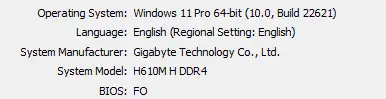
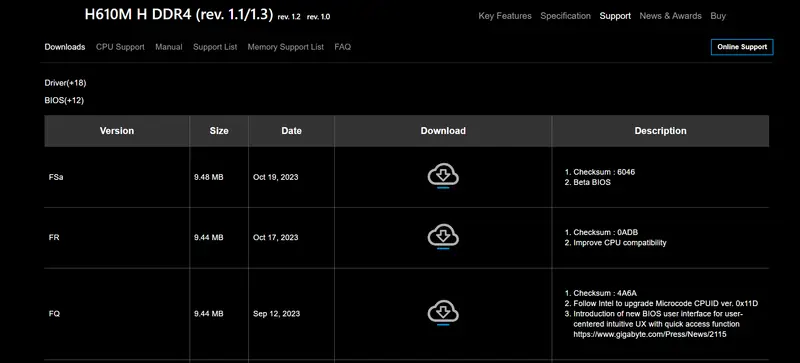
Once you know the model, you can search for it on Google, and the support page of your motherboard model’s page, you will find the option to download the latest BIOS.
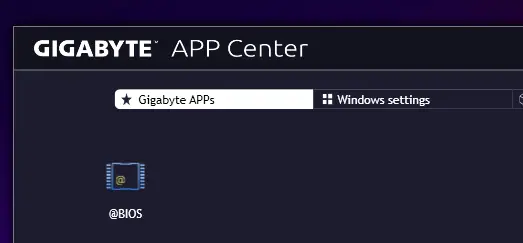
Every manufacturer has an App or software that can help you update your BIOS easily. For any other brand/company, you can search on Google or YouTube for a guide.


Drivers Update - Once we are done with the BIOS update, the next important step is to get all your drivers updated.

Make sure to skip updating NVIDIA or AMD Drivers with Driver Booster.
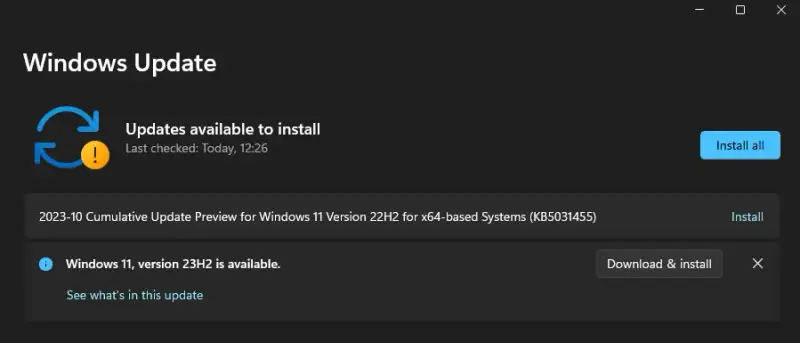
Windows Update - Once the BIOS and Drivers are up to date, the last thing before making changes to your system is to update your Windows.
Go to Settings
On the Left Menu, select Windows Update.
Restart your PC after updating Windows if it doesn’t automatically.

Graphic Drivers - In this guide, we will cover the NVIDIA Graphic Cards. To install the NVIDIA Drivers with no bloatware, you will have to download NVCleanstall.
It is a tool made by expert tweakers to install NVIDIA drivers without any extra components like Telemetry, GeForce Experience, ShadowPlay, etc.
Install NVCleanstall and click Next.
In Components to Install, click Recommended and click Next.
It will start downloading NVIDIA Drivers without any bloatware.
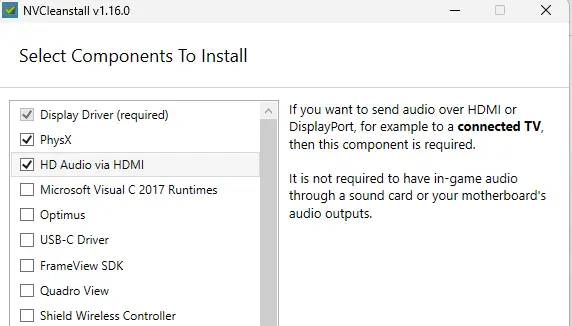

On the next page, you will see all the options to Tweak. Just follow all the tweaks which are selected in the screenshot below and click next. It will show you the option to Install and everything will be done automatically as we have selected unattended express installation.

NVIDIA Settings - After drivers are installed, go to Manage 3D Settings, select CS2.exe in the App, change all the settings as shown in the screenshots, and click Apply.

Make sure you have selected Use the advanced 3d image settings in Adjust Image Settings with Preview window.

In the Adjust desktop size and position, select Scaling to Full-screen and perform scaling onto GPU. Check “Override the scaling mode set by games and programs” and click Apply.

NVIDIA Profile Inspector - Some Advanced Settings are not available in the NVIDIA control panel and for that, there is a tool called NVIDIA Profile Inspector. Once downloaded, run it as an admin.
In the NVIDIA Profile Inspector, change the Profile to Counter-Strike 2, change the settings in Sync and Refresh as shown below in the screenshot, and hit Apply Changes on the top right.

Disable Fullscreen Optimization - If you have Steam installed in the default directory, simply go to this path - C:/Program Files (x86)/Steam/steamapps/common/Counter-Strike Global Offensive/game/bin/win64 and right-click cs2.exe and in the properties, select the Compatibility tab. Check Disable Fullscreen Optimization and click Apply.

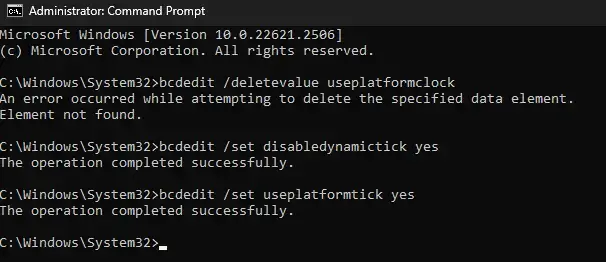
BCD Values in CMD Prompt - open the command prompt as an admin and type these commands and press enter.
bcdedit /deletevalue useplatformclock
bcdedit /set disabledynamictick yes
bcdedit /set useplatformtick yes

Network Adapter Settings - Go to Network Adapter Settings, click configure, and in the Advanced Tab, select these options:
Green Ethernet - Disabled
Power Saving Mode - Disabled
Disabling Windows Services - Many unwanted services are running in the background of Windows and we will disable them in this step. Open Powershell as Admin and paste all these commands in the prompt.
Set-Service AxInstSV -StartupType Disabled
Set-Service tzautoupdate -StartupType Disabled
Set-Service bthserv -StartupType Disabled
Set-Service dmwappushservice -StartupType Disabled
Set-Service MapsBroker -StartupType Disabled
Set-Service lfsvc -StartupType Disabled
Set-Service SharedAccess -StartupType Disabled
Set-Service lltdsvc -StartupType Disabled
Set-Service AppVClient -StartupType Disabled
Set-Service NetTcpPortSharing -StartupType Disabled
Set-Service CscService -StartupType Disabled
Set-Service PhoneSvc -StartupType Disabled
Set-Service Spooler -StartupType Disabled
Set-Service PrintNotify -StartupType Disabled
Set-Service QWAVE -StartupType Disabled
Set-Service RmSvc -StartupType Disabled
Set-Service RemoteAccess -StartupType Disabled
Set-Service SensorDataService -StartupType Disabled
Set-Service SensrSvc -StartupType Disabled
Set-Service SensorService -StartupType Disabled
Set-Service ShellHWDetection -StartupType Disabled
Set-Service SCardSvr -StartupType Disabled
Set-Service ScDeviceEnum -StartupType Disabled
Set-Service SSDPSRV -StartupType Disabled
Set-Service WiaRpc -StartupType Disabled
Set-Service TabletInputService -StartupType Disabled
Set-Service upnphost -StartupType Disabled
Set-Service UserDataSvc -StartupType Disabled
Set-Service UevAgentService -StartupType Disabled
Set-Service WalletService -StartupType Disabled
Set-Service FrameServer -StartupType Disabled
Set-Service stisvc -StartupType Disabled
Set-Service wisvc -StartupType Disabled
Set-Service icssvc -StartupType Disabled
Set-Service WSearch -StartupType Disabled
Set-Service XblAuthManager -StartupType Disabled
Set-Service XblGameSave -StartupType Disabled

CS2 In-game Video Settings - These are the best In-Game Video settings for CS2 that will get the most frames out of your system.

We hope this guide will help you boost your PC’s Performance and get more frames out of the system. We do not guarantee any claims of 2x Performance or something like that, on average you will experience at least 10% better FPS. Every system is different and reacts differently to the settings.
Also, do not forget to clean your system. That’s the most important step. Have Fun!


